
Add Papirer widgets to your iPhone
Your balance, goals and upcoming payments on the Home Screen or the Lock Screen.
Last updated November 25, 2026
Widgets show your Papirer figures without opening the app. You add them from the iPhone’s own screens, not from inside Papirer, and they are free.
On the Home Screen
-
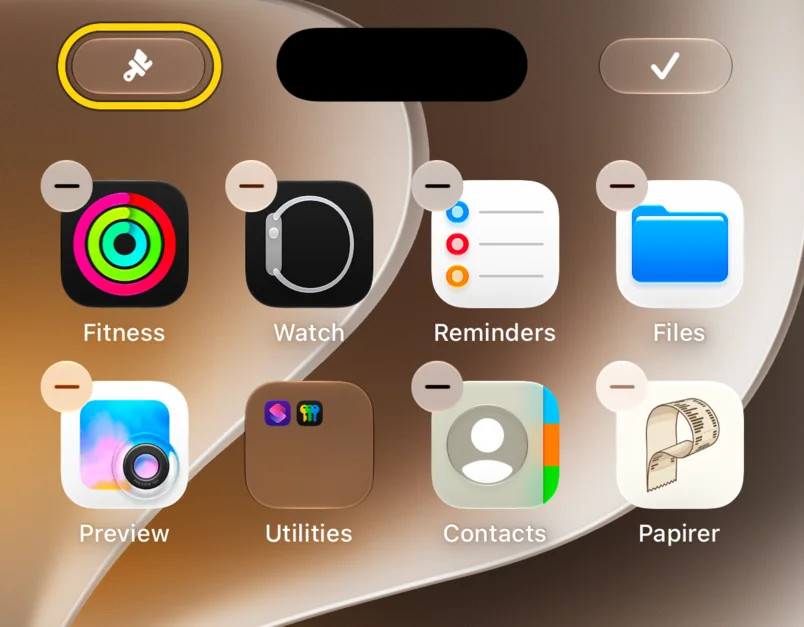
Touch and hold an empty area of the Home Screen until the apps start to jiggle.
-
Tap the button in the top-left corner. Depending on your iOS version it reads Edit or shows a brush icon.
-
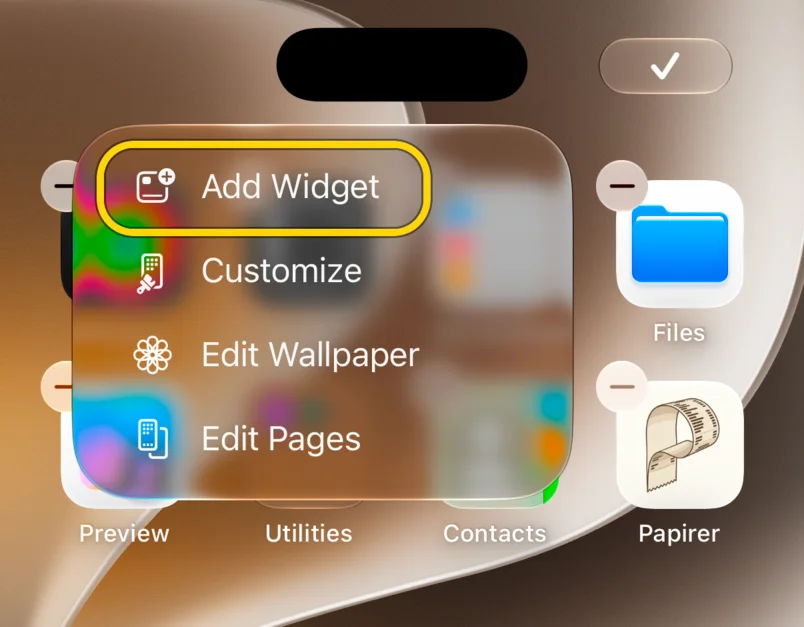
Choose Add Widget.
-
Type “Papirer” in the search field and tap the result.
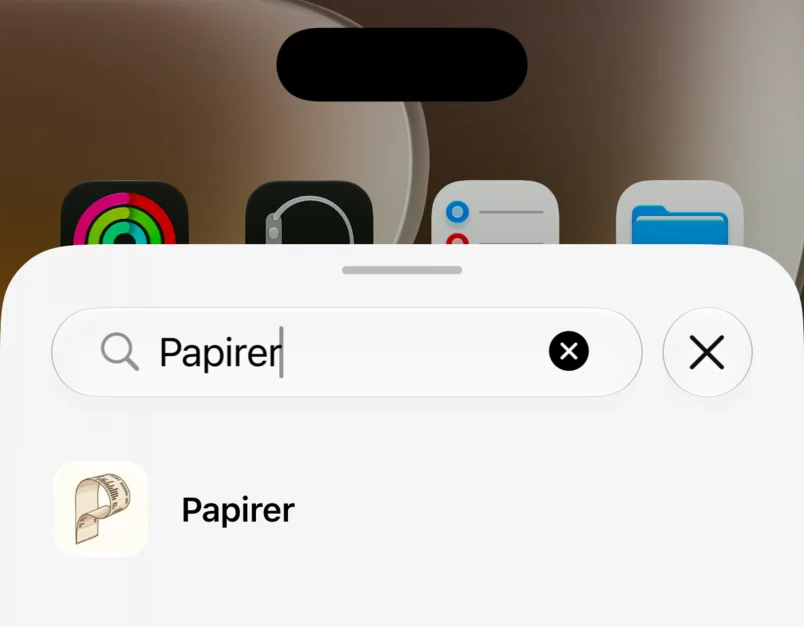
-
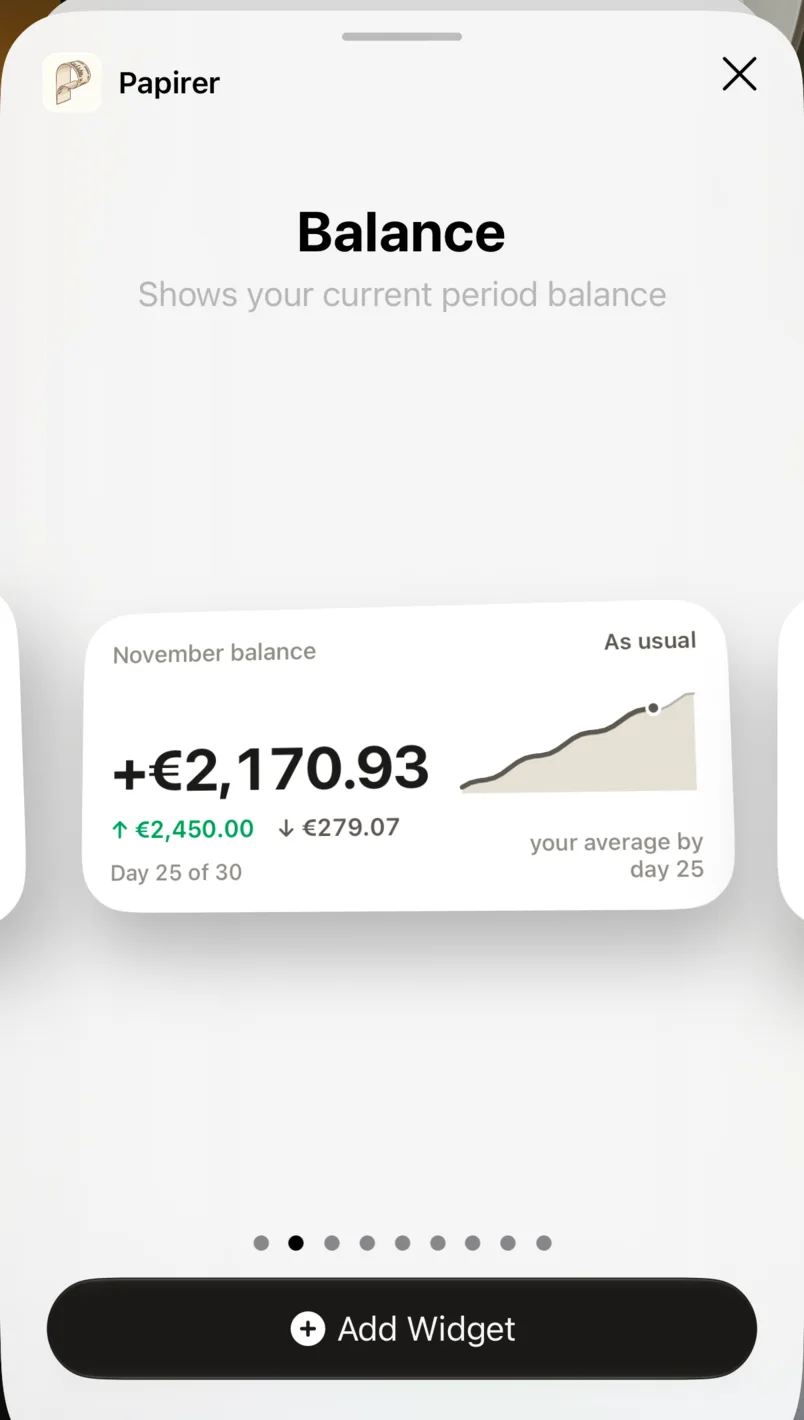
Swipe sideways to the widget and size you want, then tap Add Widget.
-
Drag it wherever you like and confirm with the button in the top-right corner.
The widgets you can add
- Balance. Your period balance right on your Home Screen. Small, Medium, Lock Screen.
- Goals. Track your goal progress at a glance. Small, Medium, Lock Screen.
- Trend. Compare this month's spending with your average by this point. Small, Medium.
- Breakdown. Your top spending categories. Medium.
- Upcoming recurring. Payments and income coming in the next days. Small, Medium, Lock Screen.
In the app, Menu → Widgets shows a preview of each one.
On the Lock Screen
- Touch and hold the Lock Screen and tap Customize. If iOS asks, choose Lock Screen.
- Tap Add Widget and choose Papirer.
- Pick the widget and confirm with the button in the top-right corner.
If something goes wrong
Papirer is not in the list
Open Papirer once and try again. If it is still missing, restart the iPhone.
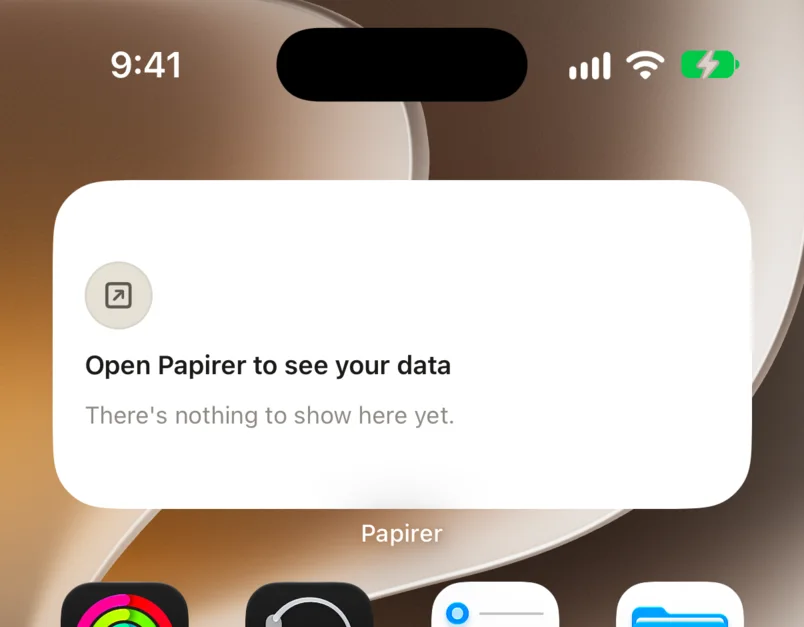
The widget says “Open Papirer to see your data”
It has no figures yet. Open the app with your account signed in and the widget fills in.
The figures look out of date
Widgets refresh while you use the app, and iOS decides when to redraw them. They are not a live counter.